Screen Emails
This feature allows you to filter emails in your inbox in a semi-automatic way. It enables you to perform two main actions:
This action moves the selected emails to a dedicated folder named “Screen Emails” (default label). As a side effect, the senders of those emails are automatically added to the Block List, which is managed by Filters.
Note
This action affects all emails from the selected sender and will result in all existing emails from that sender being moved to the screening folder.
Liking an email places the sender on the White List, which removes them from the Block List if they were previously listed there.
To screen emails:
- Go to the Inbox folder of any mailbox.
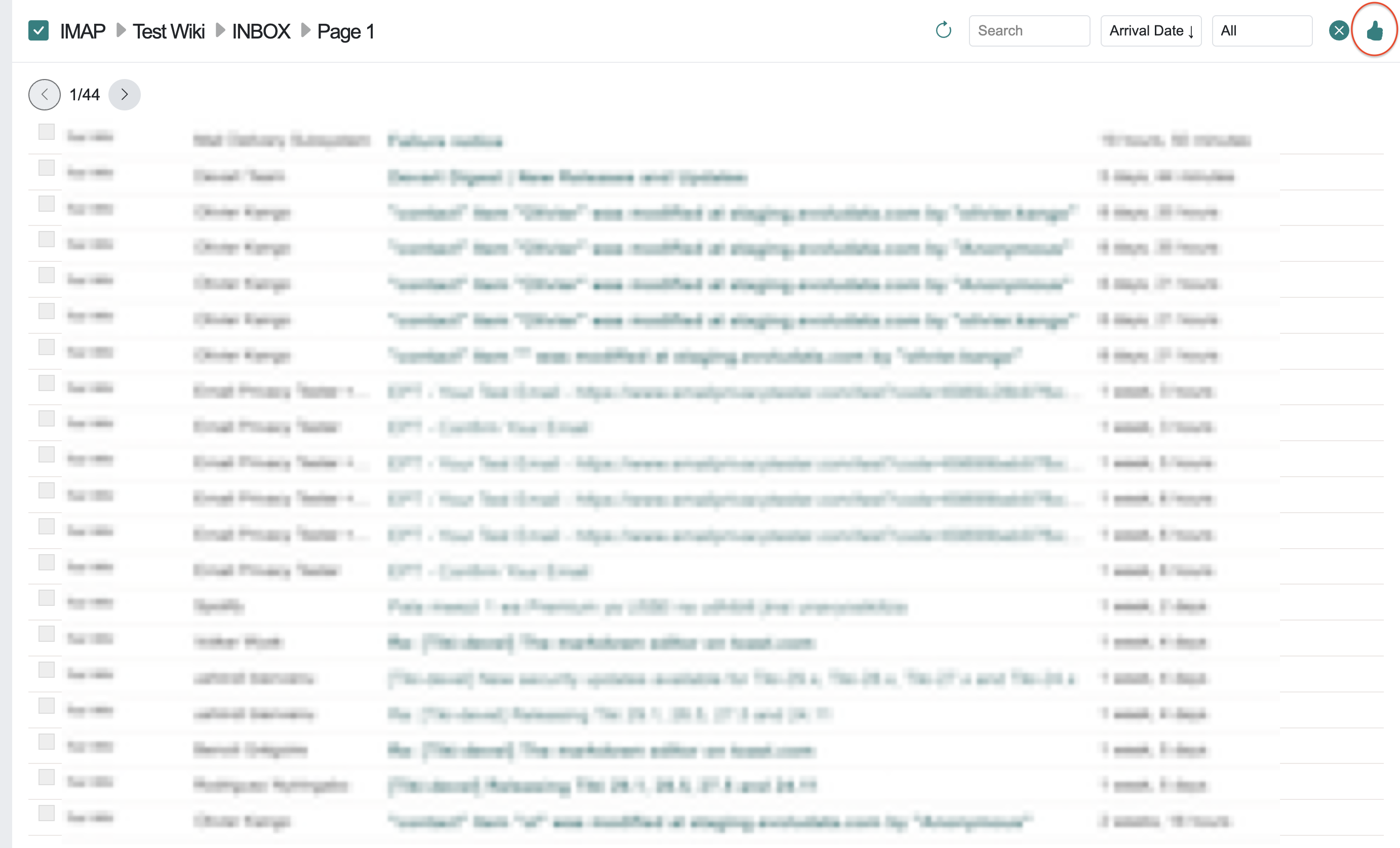
- Click the “Screen” button.
- Select one or more emails, then choose an action (Like or Dislike).
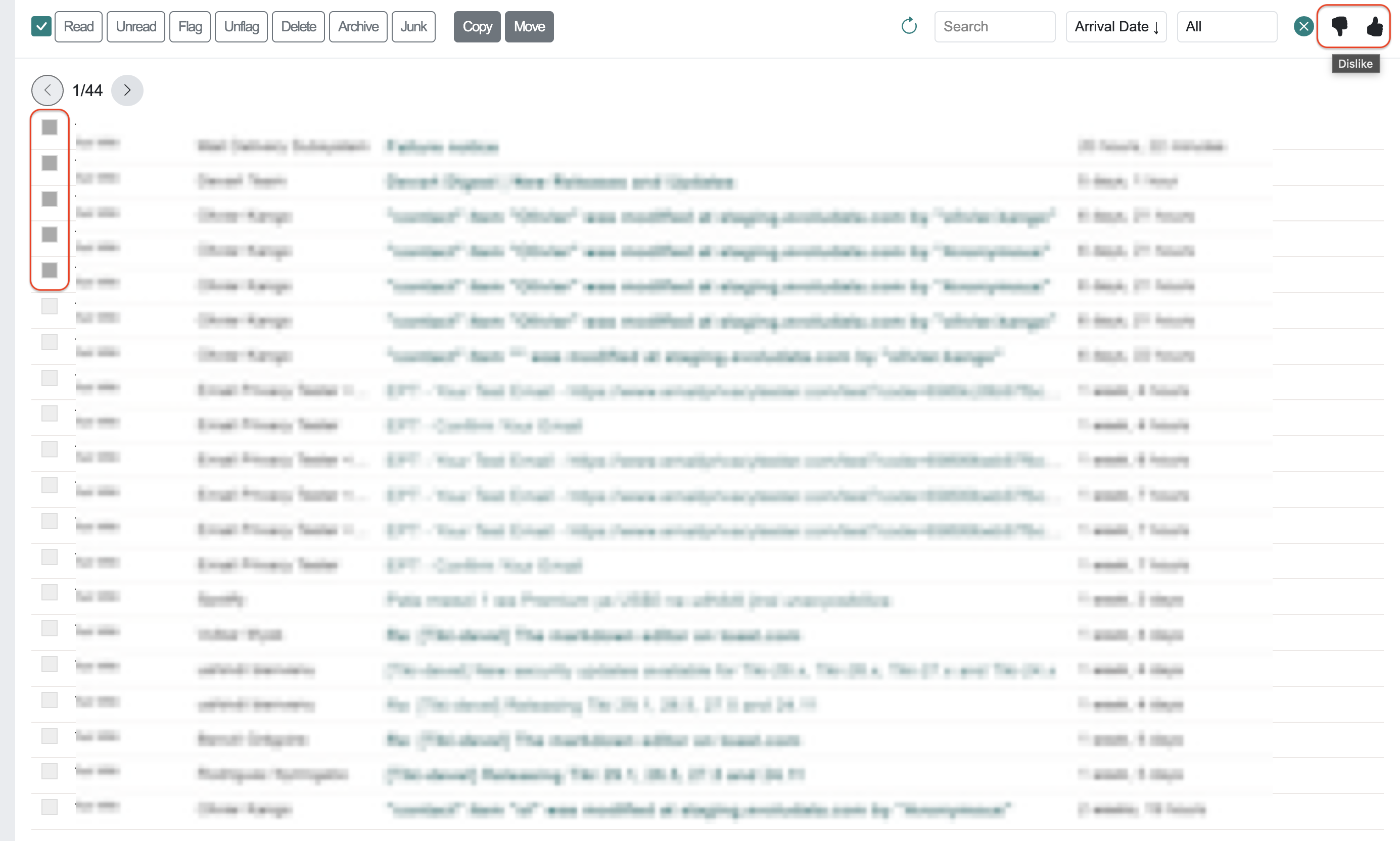
- Liked emails remain in the inbox, and their senders are white-listed.
- Disliked emails are moved to the “Screen Emails” folder, where you can decide what to do next (e.g., delete, mark as spam, archive, flag, etc.).
Note
You do not need to manually create the “Screen Emails” folder. It will be automatically created the first time you dislike emails in a mailbox.